LogoHelloAITools
  • Categories
  • Collection
  • Blog
  • Pricing
  • Submit
LogoHelloAITools
  1. Home
  2. Products
  3. Emra / Always on Transcription and PTT
Emra / Always on Transcription and PTT

Emra / Always on Transcription and PTT

Type with your voice and always-on transcription

UpdatedJan 30, 2026
URLemra.app
PricingFree & Paid
AI AudioAI Productivity#Speech to Text#Desktop App#For Business#For Content Creators#Freemium
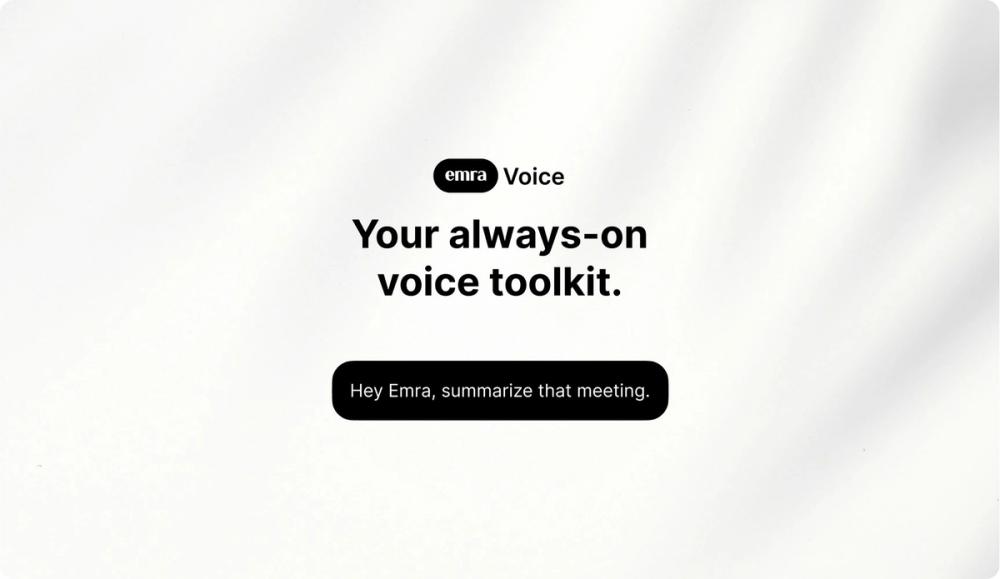
Screenshot of Emra / Always on Transcription and PTT
Visit Website

What is Emra / Always on Transcription and PTT?

How to use Emra / Always on Transcription and PTT?

Features

Use Cases

FAQ

Pricing

Free Plan

Free
  • Basic transcription features
  • Limited usage
  • Core voice-to-text functionality

Premium Plan

Contact for Pricing
  • Unlimited transcription
  • Advanced features including meeting summarization
  • Priority support
  • Full access to all voice command capabilities
LogoHelloAITools

Discover the best AI tools for your needs.

Product
  • Browse All
  • Collection
Resources
  • Blog
  • Pricing
  • Submit
Company
  • Privacy Policy
  • Terms of Service
  • Sitemap
Copyright © 2026 All Rights Reserved.

Emra is an always-on voice toolkit designed to transform how you interact with your computer through speech. It provides continuous speech-to-text transcription at impressive speeds of up to 140 words per minute, allowing you to type with your voice naturally and efficiently. Beyond simple dictation, Emra serves as an intelligent voice assistant that can summarize meetings, organize your scattered thoughts, and answer quick questions through voice commands. Available for both macOS and Windows, Emra aims to boost productivity by making voice-based computing seamless and accessible.

  1. Download and install Emra from the official website for your operating system (macOS or Windows)
  2. Launch the application and complete the initial setup, granting necessary microphone permissions
  3. Enable the always-on transcription feature to start converting your speech to text automatically
  4. Use push-to-talk (PTT) mode for controlled dictation when you want more precise input timing
  5. Say "Hey Emra" to activate voice commands and ask questions or give instructions
  6. Use the meeting summarization feature during or after calls to capture key points
  7. Review and edit your transcribed text in any application where you're working
  • Always-On Transcription: Continuous speech-to-text conversion that runs in the background, ready to capture your voice at any moment without manual activation
  • Push-to-Talk Mode: Controlled dictation option that only transcribes when you press a designated key, perfect for precise input
  • High-Speed Dictation: Transcribe at up to 140 words per minute, keeping pace with natural speech patterns
  • Voice Command Activation: Say "Hey Emra" to trigger voice commands for quick questions and task automation
  • Meeting Summarization: Automatically capture and summarize key points from your meetings and conversations
  • Idea Organization: Transform scattered thoughts and verbal brainstorming into structured, organized text
  • Cross-Platform Support: Available for both macOS and Windows operating systems

#1 Professional Dictation: Writers, journalists, and content creators can draft articles, emails, and documents at the speed of thought without touching the keyboard, dramatically increasing productivity.

#2 Meeting Documentation: Professionals can use Emra during virtual or in-person meetings to capture discussions, action items, and decisions automatically, eliminating the need for manual note-taking.

#3 Hands-Free Computing: Users with repetitive strain injuries or those who prefer voice input can navigate their workflow entirely through speech, reducing physical strain on hands and wrists.

#4 Quick Research Queries: Instead of switching applications or typing searches, users can ask "Hey Emra" questions and get instant answers while staying focused on their primary task.

#5 Brainstorming Sessions: Capture fleeting ideas and creative thoughts immediately through voice, allowing Emra to organize and structure the output for later review and development.

What platforms does Emra support? Emra is available for both macOS and Windows operating systems, providing cross-platform compatibility for desktop users.

How fast can Emra transcribe speech? Emra can transcribe speech at up to 140 words per minute, which matches or exceeds natural speaking pace for most users.

What is the difference between always-on transcription and push-to-talk? Always-on transcription continuously converts your speech to text in the background, while push-to-talk (PTT) mode only activates transcription when you press and hold a designated key, giving you precise control over when dictation occurs.

Can Emra work offline? Please check the official Emra website for the most current information about offline capabilities and system requirements.

How do I activate voice commands? Simply say "Hey Emra" to activate the voice command feature, then ask your question or give your instruction.